Issue:
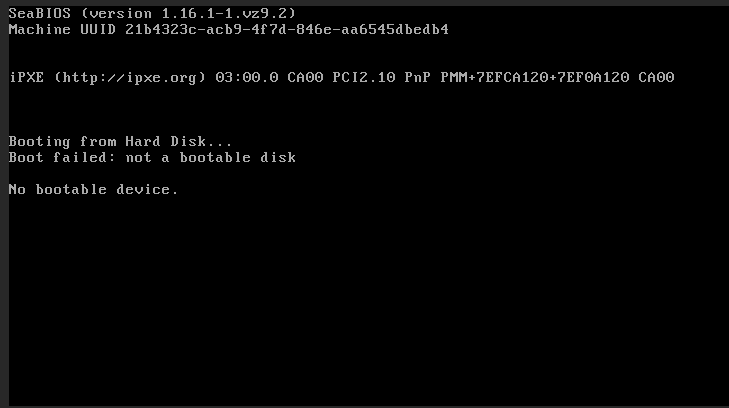
When creating a new virtual machine (VM) and attempting to install Windows 11 using an uploaded ISO file, the VM fails to boot from the ISO and displays the following error message:
Booting from Hard Disk...
Boot failed: not a bootable disk
No bootable device.
Cause:
This issue occurs because the VM is not configured with vTPM (Virtual Trusted Platform Module), which is required for Windows 11 installation.
Windows 11 enforces certain hardware requirements, including TPM 2.0 and Secure Boot support. Without these, the system will not recognize the ISO as a bootable medium or may fail to proceed with the installation.
Solution:
Follow the steps below to create and deploy a Windows VM successfully:
- Go to your desired region
Log in to your cloud control panel and select the region where you want to deploy the VM. - Open the Advanced Panel
- Click on Advanced Panel → Create Virtual Machine.
- Configure the VM Settings
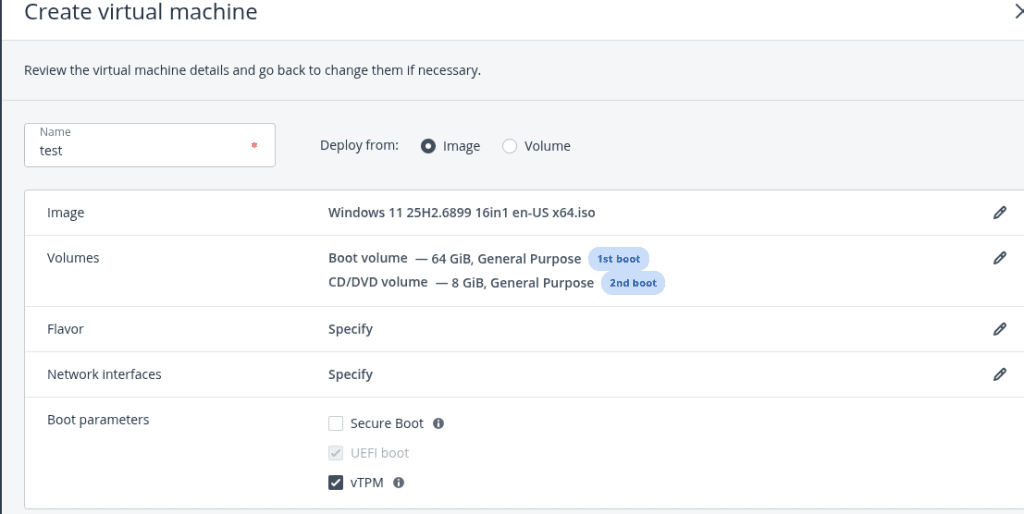
- Deploy from: Select Image.
- Image: Choose your uploaded Windows 11 ISO
- Volumes:
- Boot volume
- CD/DVD volume
- Flavor: Select the appropriate compute configuration (CPU, RAM).
- Network interfaces: Assign a network.
- Set Boot Parameters
- Enable the following options:
- ✅ UEFI Boot (automatically selected)
- ✅ vTPM (Virtual Trusted Platform Module)
- Secure Boot is optional but may be left unchecked if not required.
- Enable the following options:
- Deploy the VM
- Click Deploy.
- The VM will start and display the Windows installation screen successfully.
You can refer to the below sample setup.
What is vTPM?
vTPM (Virtual Trusted Platform Module) is a virtualized version of the TPM 2.0 hardware chip.
It provides cryptographic functions that enhance system security and is essential for running Windows 11, as it simulates the presence of TPM hardware in virtual environments.
Why vTPM Must Be Enabled:
- Windows 11 requires TPM 2.0 for installation and secure operation.
- Without enabling vTPM:
- The VM will not detect the Windows ISO as bootable.
- Installation may fail with a “No bootable device” or “This PC can’t run Windows 11” error.