What is Let’s Encrypt?
Let’s Encrypt is an open Certificate Authority (CA) offered at no cost by the Internet Security Research Group (ISRG). It provides digital certificates that allow websites to implement HTTPS (SSL/TLS).
Benefits of Using Let’s Encrypt
1. No charges – No payments or subscriptions are necessary.
2. Recurring Renewal – Configure it once, and let it run.
3. Safe – Employs current security standards.
4. Reliable – Endorsed by all leading web browsers.
5. Community-driven – Open-source and transparent.
How Let’s Encrypt SSL Works
1. Domain Validation (DV) – It verifies ownership of the domain through the ACME protocol.
2. Certificate Creation – The ACME client, Certbot, submits a request for the certificate.
3. Validation – Let’s Encrypt confirms domain ownership through an HTTP or DNS challenge.
4. Certificate Delivery – A certificate that has been signed is issued.
5. Automatic Renewal – Certbot has the capability to automatically renew the certificate prior to its expiration.
Prerequisites
1. A domain name (like example.com) that directs to your server.
2. Having Apache or Nginx set up.
3. Access to your server with root or sudo permissions.
4. Ports 80 (HTTP) and 443 (HTTPS) must be open.
Step 1
#yum update -y
For ubuntu
#apt update && sudo apt upgrade -y

Step 2
Install the httpd package with the help of the yum command
#yum install httpd -y >> to install the package
For Ubuntu
#apt install apache2 -y

Step 3
#systemctl start httpd >> to start the httpd.service
#systemctl status httpd >> to check the status of httpd.srevice

Step 4
Now install the epel-release package
#yum install epel-release -y
For Ubuntu
#add-apt-repository universe
#add-apt-repository multiverse
#apt update

Step 5
Now install certbot for the SSL certificate
#yum install certbot python3-certbot-apache -y
For ubuntu
#apt install certbot python3-certbot-apache -y

Step 6
Now install the SSL certificate using the command
#certbot – – apache
After entering the command, you have to give your Domain name to which you want to attach the SSL certificate

To verify whether the SSL certificate is applied or not, you can check the website like
sslchecker https://www.sslshopper.com/ssl-checker.html
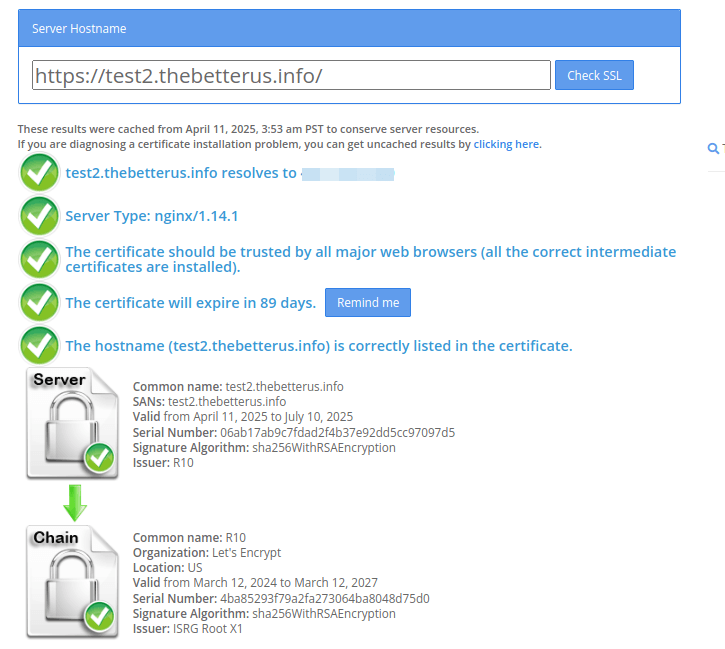
To check the SSL certificate, click on this link sslchecker
Conclusion
By following these steps, you have successfully secured your Nginx web server with a free, trusted, and automatically renewing SSL certificate from Let’s Encrypt. This improves security, SEO rankings, and user trust.