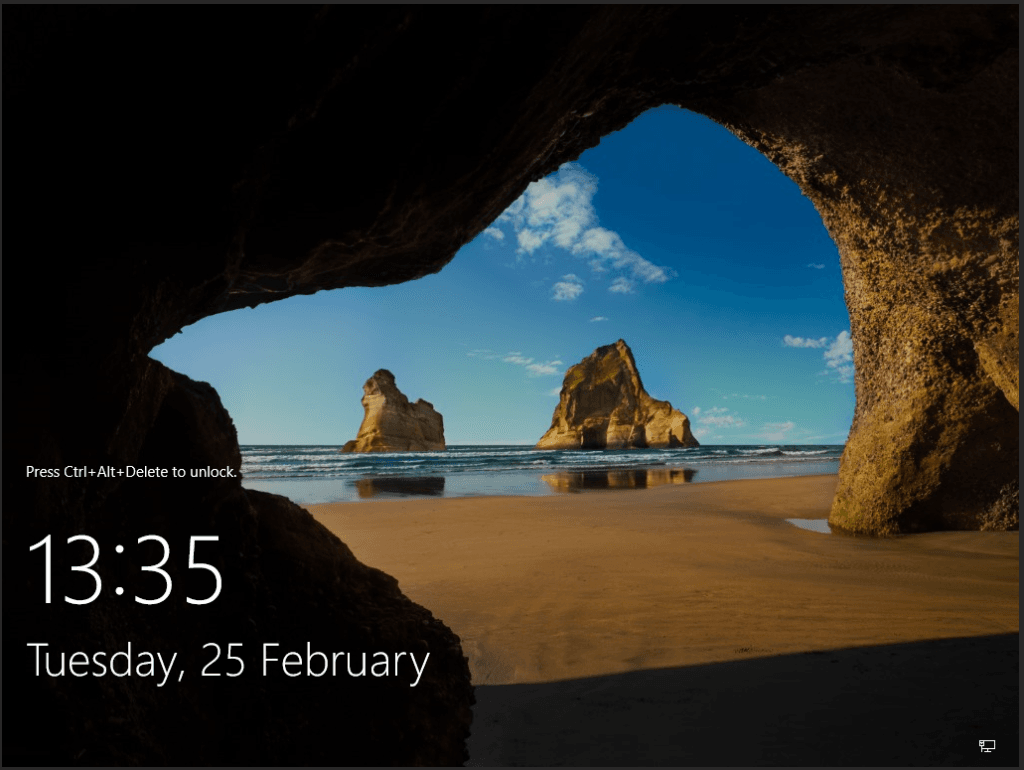
Remote Desktop Protocol (RDP) is a widely used protocol for accessing Windows-based systems remotely. For accessing a Windows VM, if you need to connect to a Windows Virtual Machine (VM) from a Linux or Windows environment, RDP provides a seamless and efficient solution. This article details the step-by-step process for enabling RDP on a Windows VM and connecting to it from both Linux and Windows operating systems. Linux.
Prerequisites:
- A Windows VM with RDP enabled.
- IP address or hostname of the Windows VM.
- A user account with RDP access permissions on the Windows VM.
Enabling RDP on the Windows VM
Before accessing the VM remotely, RDP must be enabled:
- Log in to your Windows VM.
- Navigate to Settings > System > Remote Desktop.
- Toggle the switch to Enable Remote Desktop.
- Click on Select Users and ensure that your user account is listed.
- Apply changes and close the settings window.


Accessing Windows VM from a Linux System
Linux users can utilize xFreeRDP, a lightweight and efficient open-source RDP client, to access Windows VMs.
1. Install xFreeRDP on Linux
xFreeRDP is available in most Linux distributions’ repositories. Install it using the package manager of your Linux distribution:
For Debian/Ubuntu:

sudo apt update

sudo apt install freerdp2-x11 - For Older Debian / Ubuntu releases

sudo apt install freerdp3-x11 - For Newer Ubuntu / Debian releases


For RHEL/CentOS/Fedora:


sudo yum update

sudo yum install freerdp -y
Note: On some RHEL-based distributions, the EPEL repository may need to be enabled before installing FreeRDP.
sudo yum install epel-release -y
sudo yum install freerdp -y
Verify the installation by running:
xfreerdp --version

xfreerdp3 --version


2. Connect to the Windows VM using command line
Use the following command to connect to your Windows VM:
freerdp3 /v:<SERVER_IP> /u:<USERNAME> /p:'<PASSWORD>'
Replace:
Example:
freerdp3 /v:157.119.xx.xxx /u:Administrator /p:'<PASSWORD>'
Note:
- If you see “Connection refused”, check that RDP is enabled and port 3389 is open in the Security Group / Firewall.
- If you get a black screen after connecting, try adding
/gfx:AVC444 /rfxto the command.


This warning appears because CloudPe VMs use self-signed SSL certificates by default. Since the certificate is not issued by a public Certificate Authority (CA), your browser or RDP client may display a security warning. This is expected behavior, and it is safe to click Continue / Yes to proceed with the connection.

Then it will ask you to enter the password.
By following the steps above, you can quickly set up and customize your RDP connection to suit your needs.
Accessing Windows VM from a Windows System
To Connect to the Windows VM from Your Windows Desktop
Windows users can connect to a Windows VM using the built-in Remote Desktop Connection (RDC) tool.
1. Open Remote Desktop Connection
- Press
Win + R, typemstsc, and pressEnter. - In the Remote Desktop Connection window, enter the IP address or hostname of the Windows VM.
- Click Connect.
2. Authenticate
- Enter your Windows username and password when prompted.
- If a security warning appears, click Yes to proceed.


3. Access the Windows VM
Upon successful authentication, the Remote Desktop session will open, providing full access to the Windows VM.