If you need to set or reset the password of an existing VM in Cloudpe, follow these simple steps:
Steps to Set or Reset the VM Password:
1. Login to Cloudpe Dashboard.
2. Navigate to the list of VMs and choose the one for which you want to set or reset the password.
3. Click on the ‘Action’ dropdown menu.
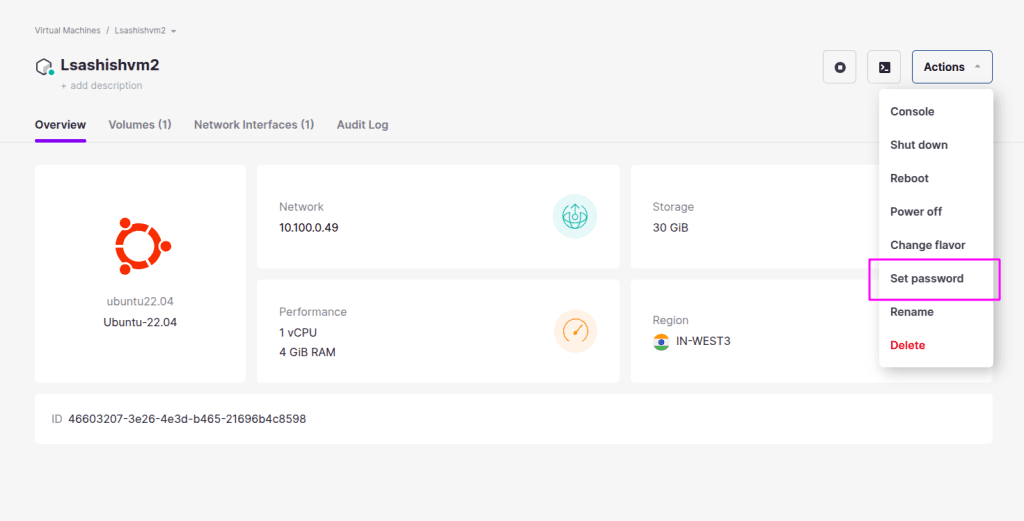
4. In the dropdown, find and select the ‘Set Password’ option.
5. Enter a Strong Password for your VM.
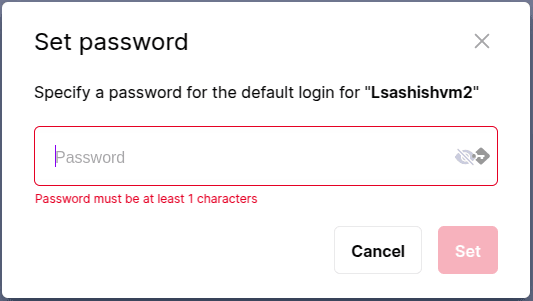
6. Click ‘Set’ to apply the new password.
Use the updated credentials to access your VM securely.
Strong Password Guidelines:
To ensure security, use the following best practices when creating a password:
- Minimum Length: At least 12–16 characters.
- Combination of Characters: Include uppercase and lowercase letters, numbers, and special symbols (@, #, $, etc.).
- Avoid Common Words: Do not use easily guessable words like ‘password123’ or your name.
- No Reuse: Avoid reusing old passwords.
By following these steps and best practices, you can ensure the security of your VM and prevent unauthorised access.
Post-Reset Login Verification:
After resetting your VM password, it is important to verify that the new credentials are working correctly.
For Linux VMs:
- Open a new terminal session and attempt an SSH login using the new password:
ssh username@<VM_IP>- Confirm you can log in successfully before ending any existing active sessions.
For Windows VMs:
- Open a new RDP (Remote Desktop Protocol) connection to the VM’s IP address.
- Enter the username and new password to verify access.
Account Lockout Scenarios:
Account lockout can occur when multiple failed login attempts are detected by the VM’s operating system.
Common Causes:
- Entering an incorrect password multiple times via SSH or RDP.
- Automated scripts or services using outdated credentials after a password reset.
- Brute-force detection policies configured in the OS.
How to Recover from Account Lockout:
Option – Reset Password via CloudPe Dashboard (Recommended):
- Log in to the CloudPe Dashboard.
- Navigate to your VM, click ‘Action’ → ‘Set Password’.
- Set a new password and click ‘Set’.
- Wait 1–2 minutes, then attempt login with the new credentials.
Password Expiration Handling:
CloudPe itself does not enforce password expiration policies at the platform level — however, the operating system running on your VM may have its own password expiration rules configured.
Linux VMs:
- Password expiration is managed via the OS. You can check the current policy with:
chage -l username- To disable password expiration for a user:
sudo chage -M -1 username- If your password has expired, you will be prompted to create a new one upon the next SSH login.
Windows VMs:
- Windows may enforce password expiration via Local Group Policy or Active Directory settings.
- If your session is blocked due to an expired password, use the CloudPe Dashboard to reset the VM password using the ‘Set Password’ option (Steps 1–6 above), then log in and update the OS-level policy as needed.