This guide explains how to manage Kubernetes clusters in CloudPE using the OpenStack Container Infrastructure Management service (Magnum) API.
Using the API examples provided in this guide, you can:
- Generate an OpenStack authentication token.
- Retrieve the required image, flavor, network, subnet, keypair, and volume type information.
- Create and manage Kubernetes cluster templates.
- Create, view, resize, upgrade, and delete Kubernetes clusters.
- List and create Kubernetes worker node groups.
- Configure node group autoscaling limits.
The examples in this guide use curl for API requests and jq for parsing JSON responses. Replace all placeholder values (for example, <APP_CRED_ID>, <APP_CRED_SECRET>, and <CLUSTER_UUID>) with values from your CloudPE project before executing the commands.
Prerequisites
Before proceeding, ensure that you have:
- An active CloudPE account with access to the Kubernetes service.
- An OpenStack Application Credential ID and Secret for the target project. (Only the project owner can create these credentials ) can refer to this knowledge base for steps to generate credentials.
curlinstalled on your local system.jqinstalled for formatting and filtering JSON output.- The UUIDs of the resources that will be referenced in the API requests, wherever applicable.
Installing curl
Ubuntu / Debian
sudo apt update
sudo apt install -y curl
CentOS / RHEL / AlmaLinux / Rocky Linux
sudo yum install -y curlInstalling jq
Ubuntu / Debian
sudo apt update
sudo apt install -y jq
CentOS / RHEL / AlmaLinux / Rocky Linux
sudo yum install -y jqVerify the Installation
curl --version
jq --version
Regional API Endpoints
Set the API endpoint variables for the region where you want to create or manage Kubernetes clusters.
West2
export KEYSTONE_ENDPOINT="https://in-west2.controlcloud.app:5000"
export MAGNUM_ENDPOINT="https://in-west2.controlcloud.app:9513"
export NOVA_ENDPOINT="https://in-west2.controlcloud.app:8774"
export NEUTRON_ENDPOINT="https://in-west2.controlcloud.app:9696"
export CINDER_ENDPOINT="https://in-west2.controlcloud.app:8776"
export GLANCE_ENDPOINT="https://in-west2.controlcloud.app:9292"
export HEAT_ENDPOINT="https://in-west2.controlcloud.app:8004"
West3
export KEYSTONE_ENDPOINT="https://in-west3.controlcloud.app:5000"
export MAGNUM_ENDPOINT="https://in-west3.controlcloud.app:9513"
export NOVA_ENDPOINT="https://in-west3.controlcloud.app:8774"
export NEUTRON_ENDPOINT="https://in-west3.controlcloud.app:9696"
export CINDER_ENDPOINT="https://in-west3.controlcloud.app:8776"
export GLANCE_ENDPOINT="https://in-west3.controlcloud.app:9292"
export HEAT_ENDPOINT="https://in-west3.controlcloud.app:8004"
Use the endpoint that corresponds to the OpenStack service required for the operation:
| Endpoint Variable | Service | Purpose |
|---|---|---|
KEYSTONE_ENDPOINT | Keystone Identity | Authentication and project information |
MAGNUM_ENDPOINT | Magnum | Cluster templates, clusters, node groups, scaling, upgrades, and lifecycle operations |
NOVA_ENDPOINT | Nova Compute | Flavor and SSH keypair discovery |
NEUTRON_ENDPOINT | Neutron Networking | Networks, subnets, and external networks |
CINDER_ENDPOINT | Cinder Block Storage | Volume type discovery |
GLANCE_ENDPOINT | Glance Image Service | Kubernetes image discovery |
HEAT_ENDPOINT | Heat Orchestration | Troubleshooting using the cluster stack_id |
Generate an Authentication Token
Before making API requests, you must generate an OpenStack authentication token using your Application Credential ID and Secret.
Run the following command and replace <APP_CRED_ID> and <APP_CRED_SECRET> with your CloudPE application credentials:
export TOKEN=$(curl -ksD - -o /dev/null \
  -H "Content-Type: application/json" \
  -d '{
    "auth": {
      "identity": {
        "methods": ["application_credential"],
        "application_credential": {
          "id": "<APP_CRED_ID>",
          "secret": "<APP_CRED_SECRET>"
        }
      }
    }
  }' \
  "$KEYSTONE_ENDPOINT/v3/auth/tokens" \
  | awk 'tolower($1) == "x-subject-token:" {print $2}' \
  | tr -d '\r')
Verify that the token was generated successfully:
curl -ks \
  -H "X-Auth-Token: $TOKEN" \
  -H "X-Subject-Token: $TOKEN" \
  "$KEYSTONE_ENDPOINT/v3/auth/tokens" \
  | jq
If the command returns token details, the authentication token is valid and can be used for subsequent API requests.
Note: OpenStack authentication tokens expire after a period of time. If an API request returns a 401 Unauthorized response, generate a new token and retry the request.
Collect Required Resource Information
Most OpenStack API requests require resource UUIDs rather than the names displayed in the CloudPE portal. Before creating a Kubernetes cluster template, collect the required resource information listed below.
| Resource | API Value |
|---|---|
| Project ID | Used by selected Cinder API endpoints |
| Fedora CoreOS image | image_id |
| Master node flavor | master_flavor_id |
| Worker node flavor | flavor_id |
| SSH keypair | keypair_id |
| Tenant network | fixed_network |
| Tenant subnet | fixed_subnet |
| External network | external_network_id |
| Boot volume type | labels.boot_volume_type |
| Container volume type | labels.docker_volume_type |
Many of these values can be obtained from the CloudPE portal. The API examples below can also be used to retrieve the required UUIDs directly from OpenStack.
Get the Project ID
Some OpenStack services, such as Cinder, may require the project ID in API request paths.
Retrieve the project ID associated with the generated token:
curl -ks \
  -H "X-Auth-Token: $TOKEN" \
  -H "X-Subject-Token: $TOKEN" \
  "$KEYSTONE_ENDPOINT/v3/auth/tokens" \
  | jq -r '.token.project.id'
Use the returned value as <PROJECT_ID> in subsequent API requests.
List Available Kubernetes Images
CloudPE recommends using the Fedora CoreOS image provided specifically for Kubernetes clusters.
Recommended image name:
fedora-coreos-x64-k8saas-secondaryList all available Fedora CoreOS images:
curl -ks \
  -H "X-Auth-Token: $TOKEN" \
  "$GLANCE_ENDPOINT/v2/images" \
  | jq -r '.images[]
    | select(.name | contains("fedora-coreos"))
    | "Name      : \(.name)\nID        : \(.id)\nStatus    : \(.status)\nVisibility: \(.visibility)\n------------------------------------------------------------"'
Copy the image ID of the active Fedora CoreOS image and use it as <FEDORA_COREOS_IMAGE_ID>.
List Available Flavors
Retrieve the list of available compute flavors:
curl -ks \
  -H "X-Auth-Token: $TOKEN" \
  "$NOVA_ENDPOINT/v2.1/flavors/detail" \
  | jq '.flavors[] | {name, id, vcpus, ram, disk}'
Using the flavor UUID is recommended because it uniquely identifies the flavor.
Create or List SSH Keypairs
Kubernetes nodes use an OpenStack Nova keypair for SSH access.
Important: If you authenticate using an application credential, use a keypair available to that API user/project context. SSH keys uploaded through the CloudPE panel may not be visible to the API user. If in doubt, create the keypair through the API and use the returned keypair name.
Create a new keypair:
curl -ks -X POST \
  -H "Content-Type: application/json" \
  -H "X-Auth-Token: $TOKEN" \
  -d '{"keypair":{"name":"<KEYPAIR_NAME>"}}' \
  "$NOVA_ENDPOINT/v2.1/os-keypairs" \
  | tee /tmp/<KEYPAIR_NAME>.json \
  | jq -r '.keypair.private_key' > <KEYPAIR_NAME>.pem

jq -r '.keypair.public_key' /tmp/<KEYPAIR_NAME>.json > <KEYPAIR_NAME>.pub
chmod 600 <KEYPAIR_NAME>.pem
chmod 644 <KEYPAIR_NAME>.pub
rm /tmp/<KEYPAIR_NAME>.json
The jq -r option preserves the private key formatting by writing actual line breaks instead of escaped newline characters.
Important: Store the generated .pem file securely. The private key is displayed only once during keypair creation and cannot be retrieved again.
List existing keypairs:
curl -ks \
  -H "X-Auth-Token: $TOKEN" \
  "$NOVA_ENDPOINT/v2.1/os-keypairs" \
  | jq '.keypairs[]?.keypair | {name, fingerprint}'
List Networks
Retrieve all available networks:
curl -ks \
  -H "X-Auth-Token: $TOKEN" \
  "$NEUTRON_ENDPOINT/v2.0/networks" \
  | jq '.networks[] | {name, id, status, router_external: .["router:external"]}'
Use:
- The tenant network UUID as
<NETWORK_ID>. - The external network UUID as
<EXTERNAL_NETWORK_ID>.
To display only external networks:
curl -ks \
  -H "X-Auth-Token: $TOKEN" \
  "$NEUTRON_ENDPOINT/v2.0/networks?router:external=true" \
  | jq '.networks[] | {name, id, status}'
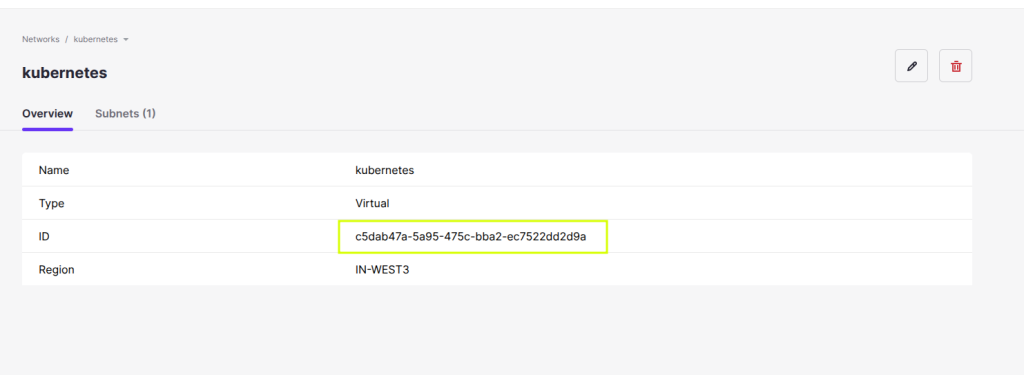
you can also get the network id by navigating to networks and then selecting the intended network.
List Subnets
Retrieve subnets associated with the selected tenant network:
curl -ks \
  -H "X-Auth-Token: $TOKEN" \
  "$NEUTRON_ENDPOINT/v2.0/subnets?network_id=<NETWORK_ID>" \
  | jq '.subnets[] | {name, id, cidr, network_id}'
Use the subnet UUID as <SUBNET_ID>.
List Volume Types
Retrieve available Cinder volume types:
curl -ks \
  -H "X-Auth-Token: $TOKEN" \
  "$CINDER_ENDPOINT/v3/<PROJECT_ID>/types" \
  | jq '.volume_types[] | {name, id, is_public}'
In some regions, the following endpoint may also be available:
curl -ks \
  -H "X-Auth-Token: $TOKEN" \
  "$CINDER_ENDPOINT/v3/types" \
  | jq '.volume_types[] | {name, id, is_public}'
Use the selected volume type id or name for:
<BOOT_VOLUME_TYPE><DOCKER_VOLUME_TYPE>
Using the volume type UUID is recommended whenever possible.
Resource Collection Checklist
Before creating a Kubernetes cluster template, ensure that you have collected the following values:
| Resource | Value |
| Region | <WEST2_OR_WEST3> |
| Project ID | <PROJECT_ID> |
| Fedora CoreOS Image UUID | <FEDORA_COREOS_IMAGE_ID> |
| Master Flavor | <MASTER_FLAVOR_ID_OR_NAME> |
| Worker Flavor | <WORKER_FLAVOR_ID_OR_NAME> |
| SSH Keypair Name | <KEYPAIR_NAME> |
| Tenant Network UUID | <NETWORK_ID> |
| Tenant Subnet UUID | <SUBNET_ID> |
| External Network UUID | <EXTERNAL_NETWORK_ID> |
| Boot Volume Type | <BOOT_VOLUME_TYPE> |
| Container Volume Type | <DOCKER_VOLUME_TYPE> |
List Kubernetes Cluster Templates
Use the following command to display all Kubernetes cluster templates available in the current OpenStack project:
curl -ks \
  -H "Content-Type: application/json" \
  -H "OpenStack-API-Version: container-infra 1.8" \
  -H "X-Auth-Token: $TOKEN" \
  "$MAGNUM_ENDPOINT/v1/clustertemplates" \
  | jq '.clustertemplates[]? | {name, uuid, coe, image_id, keypair_id, master_lb_enabled, floating_ip_enabled}'
The output displays key cluster template properties, including the template name, UUID, container orchestration engine (COE), image, keypair, and network settings.
Note: The template uuid is required for creating Kubernetes clusters and performing certain cluster management operations.
Create a Kubernetes Cluster Template
A cluster template defines the default configuration that Magnum uses when creating Kubernetes clusters.
Before creating a template, ensure that you have collected all required resource information, including:
- Fedora CoreOS image UUID
- Tenant network UUID
- Tenant subnet UUID
- External network UUID
- SSH keypair name
- Master node flavor
- Worker node flavor
- Boot volume type
- Container volume type
The example below creates a Kubernetes cluster template using:
- Fedora CoreOS as the node operating system.
- Cilium as the Kubernetes network plugin.
- Cinder-backed persistent storage.
- Containerd as the container runtime.
- Disabled floating IP allocation by default.
- Disabled Kubernetes API load balancer creation.
- Explicit component version tags for predictable cluster deployments.
curl -ks -X POST \
  -H "Content-Type: application/json" \
  -H "OpenStack-API-Version: container-infra 1.8" \
  -H "X-Auth-Token: $TOKEN" \
  -d '{
    "name": "<TEMPLATE_NAME>",
    "server_type": "vm",
    "cluster_distro": "fedora-coreos",
    "coe": "kubernetes",
    "image_id": "<FEDORA_COREOS_IMAGE_ID>",
    "network_driver": "cilium",
    "volume_driver": "cinder",
    "docker_storage_driver": "overlay2",
    "docker_volume_size": 20,
    "master_lb_enabled": false,
    "floating_ip_enabled": false,
    "fixed_network": "<NETWORK_ID>",
    "fixed_subnet": "<SUBNET_ID>",
    "external_network_id": "<EXTERNAL_NETWORK_ID>",
    "flavor_id": "<WORKER_FLAVOR_ID_OR_NAME>",
    "master_flavor_id": "<MASTER_FLAVOR_ID_OR_NAME>",
    "keypair_id": "<KEYPAIR_NAME>",
    "labels": {
      "etcd_lb_disabled": "true",
      "heat_container_agent_tag": "5.3.11",
      "boot_volume_size": "20",
      "boot_volume_type": "<BOOT_VOLUME_TYPE>",
      "docker_volume_type": "<DOCKER_VOLUME_TYPE>",
      "cloud_provider_tag": "v1.31.1",
      "cloud_provider_enabled": "true",
      "cinder_csi_plugin_tag": "v1.31.1",
      "csi_snapshotter_tag": "v8.0.1",
      "csi_attacher_tag": "v4.6.1",
      "cinder_csi_enabled": "true",
      "availability_zone": "nova",
      "use_podman": "true",
      "etcd_tag": "v3.5.13",
      "cgroup_driver": "systemd",
      "auto_scaling_enabled": "True",
      "cluster_upgrade_method": "replace",
      "network_driver": "cilium",
      "kube_tag": "v1.31.2",
      "kube_version": "v1.31.2",
      "hyperkube_image": "docker.io/virtuozzo/hci-binary-hyperkube",
      "autoscaler_tag": "1.31.0",
      "coredns_tag": "1.11.3",
      "k8s_keystone_auth_tag": "v1.31.1",
      "cilium_tag": "v1.16.3",
      "container_runtime": "containerd",
      "monitoring_enabled": "False",
      "cilium_routing_mode": "native"
    }
  }' \
  "$MAGNUM_ENDPOINT/v1/clustertemplates" \
  | jq
If the request is successful, Magnum returns the newly created cluster template details in JSON format.
Record the returned template uuid value. This UUID is required when creating a Kubernetes cluster from the template.
Important: Avoid using the latest tag for Kubernetes components or Heat container agents in production environments. Always specify explicit version tags to ensure predictable cluster creation and upgrade behavior.
Note: The values shown in the labels section represent a validated CloudPE Kubernetes configuration. Unless you have a specific requirement, CloudPE recommends using the provided values without modification.
Show Cluster Template Details
Use the cluster template UUID to retrieve the complete configuration and metadata for a specific Kubernetes cluster template.
curl -ks \
  -H "Content-Type: application/json" \
  -H "OpenStack-API-Version: container-infra 1.8" \
  -H "X-Auth-Token: $TOKEN" \
  "$MAGNUM_ENDPOINT/v1/clustertemplates/<TEMPLATE_UUID>" \
  | jq
The response includes all template configuration details, including:
- Template name and UUID
- Kubernetes version
- Image ID
- Network configuration
- Flavor configuration
- Storage settings
- Cluster labels and component versions
This command is useful for verifying template settings before creating new Kubernetes clusters.
Delete a Cluster Template
Delete an existing Kubernetes cluster template using its UUID.
curl -ks -X DELETE \
  -H "Content-Type: application/json" \
  -H "OpenStack-API-Version: container-infra 1.8" \
  -H "X-Auth-Token: $TOKEN" \
  "$MAGNUM_ENDPOINT/v1/clustertemplates/<TEMPLATE_UUID>"
A successful request removes the cluster template from the project.
Note: A cluster template can only be deleted if it is not being used by active Kubernetes clusters. If the template is referenced by an existing cluster, Magnum may reject the deletion request.
Verify Cluster Template Deletion
After deleting the template, verify that it has been removed:
curl -ks \
  -H "OpenStack-API-Version: container-infra 1.8" \
  -H "X-Auth-Token: $TOKEN" \
  "$MAGNUM_ENDPOINT/v1/clustertemplates/<TEMPLATE_UUID>" \
  | jq
Expected results:
- If the template was successfully deleted: the API returns a
404 Not Foundresponse. - If the template still exists: the API returns the template details in JSON format.
List Kubernetes Clusters
Use the following command to display all Kubernetes clusters in the current OpenStack project:
curl -ks \
  -H "Content-Type: application/json" \
  -H "OpenStack-API-Version: container-infra 1.8" \
  -H "X-Auth-Token: $TOKEN" \
  "$MAGNUM_ENDPOINT/v1/clusters" \
  | jq
The response includes cluster information such as the cluster name, UUID, status, node counts, and API endpoint details.
Create a Kubernetes Cluster
Create a Kubernetes cluster using an existing cluster template.
Cluster creation is an asynchronous operation. A successful request starts the deployment process and returns the cluster information, including the cluster UUID.
curl -ks -X POST \
  -H "Content-Type: application/json" \
  -H "OpenStack-API-Version: container-infra 1.8" \
  -H "X-Auth-Token: $TOKEN" \
  -d '{
    "name": "<CLUSTER_NAME>",
    "cluster_template_id": "<TEMPLATE_UUID>",
    "master_count": 1,
    "node_count": 2,
    "create_timeout": 60
  }' \
  "$MAGNUM_ENDPOINT/v1/clusters" \
  | jq
Parameters:
| Parameter | Purpose |
|---|---|
name | Cluster name |
cluster_template_id | Cluster template UUID |
master_count | Control plane node count |
node_count | Worker node count |
create_timeout | Deployment timeout (minutes) |
Note: Cluster creation can take several minutes depending on the selected node size and cluster configuration.
If the cluster UUID is not immediately visible in the response, list the available clusters and identify the newly created cluster by name:
The status of the cluster creation operation can also be viewed in the Advanced Panel while the cluster is being deployed.
curl -ks \
  -H "Content-Type: application/json" \
  -H "OpenStack-API-Version: container-infra 1.8" \
  -H "X-Auth-Token: $TOKEN" \
  "$MAGNUM_ENDPOINT/v1/clusters" \
  | jq '.clusters[]? | {name, uuid, status, health_status, api_address, stack_id}'
Wait until the cluster status changes to CREATE_COMPLETE before attempting to access the Kubernetes API or download the kubeconfig.
Show Kubernetes Cluster Details
Display detailed information for a specific Kubernetes cluster:
curl -ks \
  -H "Content-Type: application/json" \
  -H "OpenStack-API-Version: container-infra 1.8" \
  -H "X-Auth-Token: $TOKEN" \
  "$MAGNUM_ENDPOINT/v1/clusters/<CLUSTER_UUID>" \
  | jq '{name, uuid, status, status_reason, health_status, api_address, stack_id, node_count, master_count}'
Resize Worker Nodes
You can increase or decrease the number of worker nodes in a Kubernetes cluster by updating the cluster’s node_count value.
Scale Up Worker Nodes
The following example increases the worker node count to three:
curl -ks -X PATCH \
  -H "Content-Type: application/json" \
  -H "OpenStack-API-Version: container-infra latest" \
  -H "X-Auth-Token: $TOKEN" \
  -d '[{"op": "replace", "path": "/node_count", "value": 3}]' \
  "$MAGNUM_ENDPOINT/v1/clusters/<CLUSTER_UUID>" \
  | jq
Scale Down Worker Nodes
The following example reduces the worker node count to one:
curl -ks -X PATCH \
  -H "Content-Type: application/json" \
  -H "OpenStack-API-Version: container-infra latest" \
  -H "X-Auth-Token: $TOKEN" \
  -d '[{"op": "replace", "path": "/node_count", "value": 1}]' \
  "$MAGNUM_ENDPOINT/v1/clusters/<CLUSTER_UUID>" \
  | jq
Scaling up adds additional worker nodes to the cluster. Scaling down removes worker nodes, so ensure that workloads can be safely rescheduled and that important data is stored on persistent volumes before reducing the node count.
Note: Control plane (master) node counts cannot be resized through this API workflow. To change the control plane design, create a new cluster template, deploy a new cluster, and migrate workloads.
List Node Groups
Node groups allow multiple pools of worker nodes with different configurations within the same Kubernetes cluster.
List all node groups associated with a cluster:
curl -sk \
  -H "X-Auth-Token: $TOKEN" \
  -H "OpenStack-API-Version: container-infra latest" \
  "$MAGNUM_ENDPOINT/v1/clusters/<CLUSTER_UUID>/nodegroups" \
  | jq
The response includes the default control plane and worker node groups, along with any additional worker node groups created for the cluster.
Create an Additional Worker Node Group
Additional node groups are useful when different workloads require different instance sizes or resource profiles.
For example, you may create a dedicated high-memory worker node group for memory-intensive applications.
curl -sk -X POST \
  -H "Content-Type: application/json" \
  -H "X-Auth-Token: $TOKEN" \
  -H "OpenStack-API-Version: container-infra latest" \
  -d '{
    "name": "<NODEGROUP_NAME>",
    "node_count": 1,
    "role": "worker",
    "flavor_id": "<NODEGROUP_FLAVOR_ID_OR_NAME>",
    "image_id": "<FEDORA_COREOS_IMAGE_ID>",
    "merge_labels": true,
    "labels": {
      "heat_container_agent_tag": "5.3.11"
    }
  }' \
  "$MAGNUM_ENDPOINT/v1/clusters/<CLUSTER_UUID>/nodegroups" \
  | jq
Important: Keep merge_labels set to true so the new node group inherits the cluster labels required by the Kubernetes deployment.
Configure Node Group Autoscaling Limits
For additional node groups, autoscaling limits can be configured by updating the minimum and maximum node counts.
curl -sk -X PATCH \
  -H "Content-Type: application/json" \
  -H "X-Auth-Token: $TOKEN" \
  -H "OpenStack-API-Version: container-infra latest" \
  -d '[
    {
      "op": "replace",
      "path": "/min_node_count",
      "value": <MIN_NODE_COUNT>
    },
    {
      "op": "replace",
      "path": "/max_node_count",
      "value": <MAX_NODE_COUNT>
    }
  ]' \
  "$MAGNUM_ENDPOINT/v1/clusters/<CLUSTER_UUID>/nodegroups/<NODEGROUP_UUID>" \
  | jq
Note: If min_node_count is set below the current node count, the autoscaler may be allowed to remove nodes. To avoid unexpected scale-down operations, set min_node_count to the current node count and adjust only max_node_count when increasing capacity.
Upgrade a Kubernetes Cluster
Kubernetes cluster upgrades require a newer compatible cluster template.
Create or identify a cluster template that uses the desired Kubernetes version, then perform the upgrade:
curl -ks -X POST \
  -H "Content-Type: application/json" \
  -H "OpenStack-API-Version: container-infra 1.8" \
  -H "X-Auth-Token: $TOKEN" \
  -d '{
    "cluster_template": "<NEW_TEMPLATE_UUID>",
    "max_batch_size": 1
  }' \
  "$MAGNUM_ENDPOINT/v1/clusters/<CLUSTER_UUID>/actions/upgrade" \
  | jq
The upgrade process is performed incrementally according to the specified max_batch_size.
Note: Cluster upgrades are available only when a compatible cluster template containing a newer Kubernetes version exists.
Delete a Kubernetes Cluster
Deleting a Kubernetes cluster permanently removes the Kubernetes control plane, worker nodes, and all OpenStack resources created specifically for that cluster.
curl -ks -X DELETE \
  -H "Content-Type: application/json" \
  -H "OpenStack-API-Version: container-infra 1.8" \
  -H "X-Auth-Token: $TOKEN" \
  "$MAGNUM_ENDPOINT/v1/clusters/<CLUSTER_UUID>"
Warning: Cluster deletion is irreversible. Ensure that any required workloads, persistent data, configuration files, and application backups have been preserved before deleting the cluster.
Verify Cluster Deletion
Confirm that the cluster has been removed:
curl -ks \
  -H "Content-Type: application/json" \
  -H "OpenStack-API-Version: container-infra 1.8" \
  -H "X-Auth-Token: $TOKEN" \
  "$MAGNUM_ENDPOINT/v1/clusters" \
  | jq
If the cluster was deleted successfully, it will no longer appear in the cluster list.
Appendix: Field Reference
The following table describes the most commonly used fields when creating and managing Kubernetes cluster templates, clusters, and node groups through the Magnum API.
| Field | Description |
|---|---|
name | User-defined name for a cluster template, Kubernetes cluster, or node group. |
server_type | Infrastructure type used for cluster nodes. CloudPE Kubernetes clusters should use vm. |
cluster_distro | Operating system distribution used by the cluster. Use fedora-coreos. |
image_id | UUID of the Fedora CoreOS image used for cluster nodes. CloudPE recommends using the active Kubernetes image, typically fedora-coreos-x64-k8saas-secondary. |
coe | Container Orchestration Engine. Use kubernetes. |
network_driver | Kubernetes network plugin. CloudPE recommends cilium. |
volume_driver | Persistent storage driver. Use cinder. |
docker_storage_driver | Container storage driver. Use overlay2. |
docker_volume_size | Size, in GB, allocated for container runtime storage on each node. |
master_lb_enabled | Controls whether a load balancer is created for the Kubernetes API endpoint. Set to false unless a dedicated API load balancer is required and sufficient load balancer quota is available. |
floating_ip_enabled | Controls whether floating IP addresses are assigned to cluster resources. Set to false unless external access through floating IPs is required. |
fixed_network | UUID of the tenant/private network used by the cluster. |
fixed_subnet | UUID of the subnet associated with the tenant/private network. |
external_network_id | UUID of the external/provider network used for outbound connectivity. |
flavor_id | Worker node flavor ID or name. |
master_flavor_id | Control plane node flavor ID or name. |
keypair_id | Nova keypair name available to the project and API user. |
labels.heat_container_agent_tag | Heat Container Agent version. Always use an explicit tested version such as 5.3.11. Avoid using latest. |
labels.kube_tag | Kubernetes version deployed on the cluster. |
labels.kube_version | Kubernetes version identifier. Typically matches kube_tag. |
labels.boot_volume_size | Size, in GB, of the operating system boot volume attached to each node. |
labels.boot_volume_type | Cinder volume type used for node boot volumes. |
labels.docker_volume_type | Cinder volume type used for container runtime and application storage volumes. |
Troubleshooting Common Issues
The following sections describe common issues encountered when managing Kubernetes clusters through the Magnum API and their recommended resolutions.
API Returns 401 Unauthorized
Authentication tokens expire after a period of time.
If an API request returns a 401 Unauthorized response:
- Generate a new authentication token.
- Export the new token to the
TOKENenvironment variable. - Retry the API request.
Cluster Creation Fails Because of Floating IP Quota
Cluster creation may fail if there are insufficient floating IP resources available in the project quota.
To avoid automatic floating IP allocation, create the cluster template with:
{
  "floating_ip_enabled": false
}
This prevents Magnum from consuming floating IP quota during cluster deployment.
Cluster Creation Fails Because of Load Balancer Quota
Cluster creation may fail when the project does not have sufficient load balancer quota.
To avoid creating a load balancer for the Kubernetes API endpoint, create the cluster template with:
{
  "master_lb_enabled": false
}
This configuration is recommended for most CloudPE Kubernetes deployments.
Cluster Creation Fails Because of Volume Quota
Cluster deployment requires block storage volumes for operating system and container storage.
If volume quota is exhausted:
- Reduce the value of
docker_volume_size. - Reduce the requested node count.
- Select a smaller or more suitable volume type.
- Request additional block storage quota if required.
Heat Container Agent Does Not Start
If cluster nodes are created successfully but Kubernetes components are not installed, verify the Heat Container Agent service on the affected node.
Check the service configuration:
systemctl cat heat-container-agent
Check the service logs:
journalctl -u heat-container-agent
If the logs indicate that the agent cannot pull the container image or reference a missing manifest for:
docker.io/virtuozzo/hci-binary-heat-container-agent:latest
recreate the cluster template using an explicit supported version:
{
  "heat_container_agent_tag": "5.3.11"
}
Using a fixed version is recommended for all production deployments.