Check VM Status from CloudPe Dashboard
- Log in to the CloudPe Dashboard.
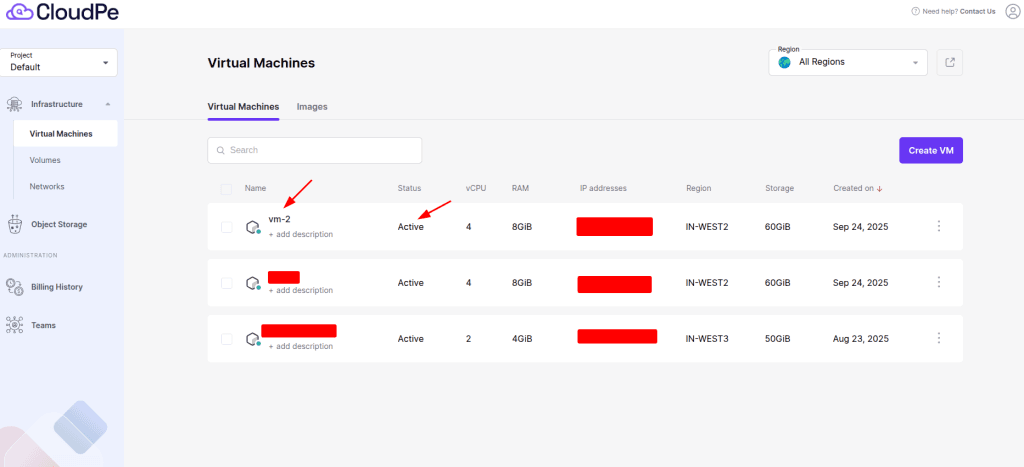
- Go to Virtual Machines.
- Check if the VM is running.
- If not, try starting or rebooting it.
Access Console
- Use the Console option in the CloudPe panel.
- If console access works, the VM is likely running fine internally.
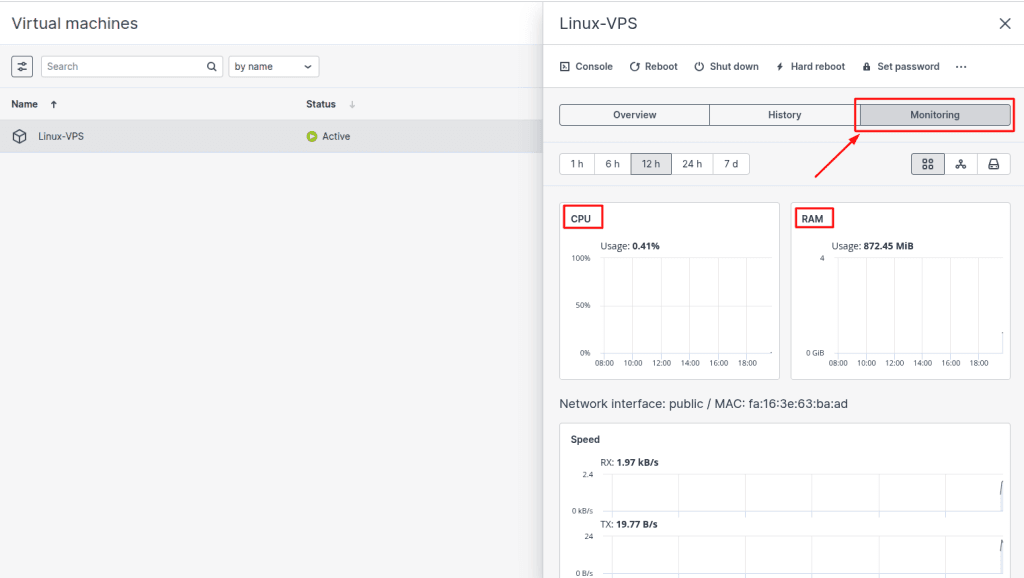
- If you can take the console but still unable to run any command on it or it lags your command prompt, please check the monitoring section from the CMP advance panel of your VPS
- Check if the CPU or RAM utilization of your VPS is normal
- If resource utilization is high, you can reboot your VPS and try to access it again
- If the console does not respond, escalate to support.
Verify Network Configuration
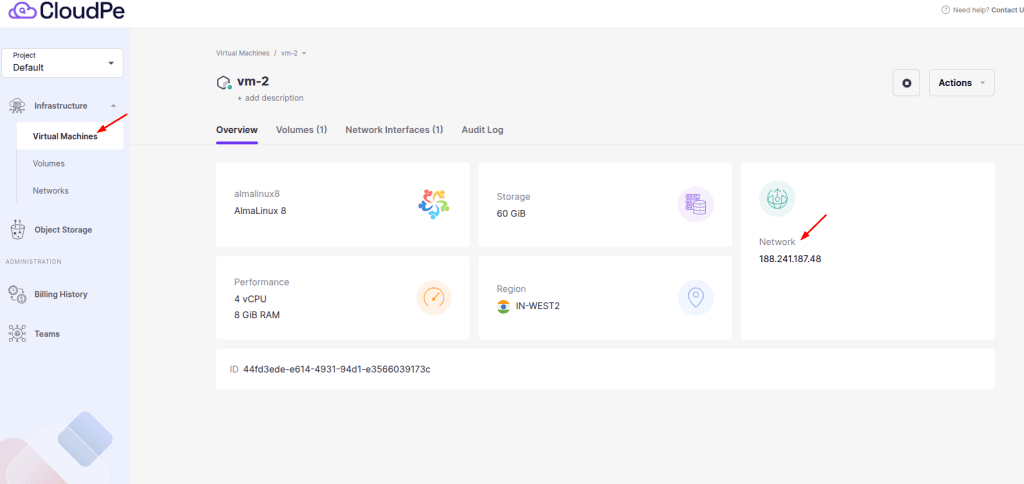
- Ensure the VM has a Public IP if you are connecting externally.
- Try to ping the public IP from your local machine
- If you are not able to ping the IP, even if it is attached to a VPS, please contact the support team
- Check Security Groups
- To check if the required ports are listening, click here
Check Firewall Inside the VM
1. Use the console to log in and check the firewall status:
- Ubuntu/Debian:
sudo ufw status - AlmaLinux/CentOS:
sudo firewall-cmd --list-all
To check if the software firewall is causing any issues, please click here
Check SSH Service Status
If your VM is running and the console is accessible but you are still unable to connect via SSH, the issue may be with the SSH service itself.
Use the console to run the following checks:
- Check if the SSH service is running:
sudo systemctl status sshdIf it shows inactive or failed, restart it using:sudo systemctl restart sshd - Verify SSH is listening on the correct port:
ss -tlnp | grep 22If there is no output, SSH is not listening — check your SSH config file at/etc/ssh/sshd_configfor any misconfigurations.
Disk/Storage Full Check A full disk can cause a VM to become unresponsive or refuse connections:
df -hto check disk usage- If
/is 100%, the VM may behave erratically