What Are OpenStack Credentials and When Do You Need Them?
OpenStack credentials (a Credential ID and Credential Secret) allow you to authenticate programmatically with your CloudPe resources.
Third-party tools – Any tool that supports OpenStack-compatible APIs.
Terraform – To automate and deploy infrastructure (VMs, storage, networking) using Infrastructure as Code.
OpenStack CLI – To manage your cloud resources directly from the command line.
OpenStack API / REST API – To integrate CloudPe resources into your own applications or scripts.
Steps to Generate OpenStack Credentials
Step 1: Access the Dashboard
Log in to your CloudPe Dashboard.
Navigate to your profile icon located at the top-right corner.
Step 2: Click on “My Account” from the dropdown menu.
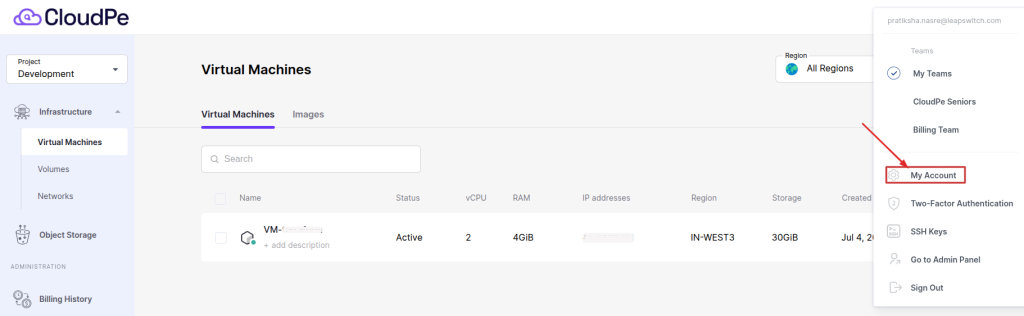
Navigate to OpenStack Credentials.
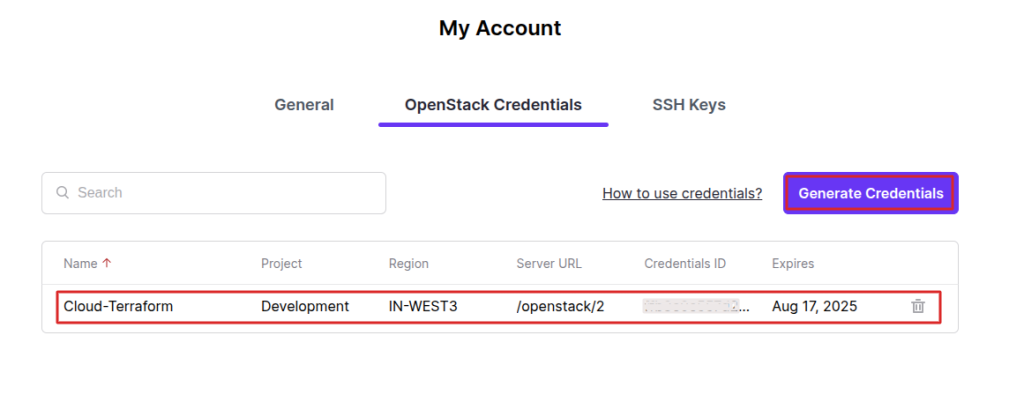
Click on “Generate Credentials” to create your access credentials.
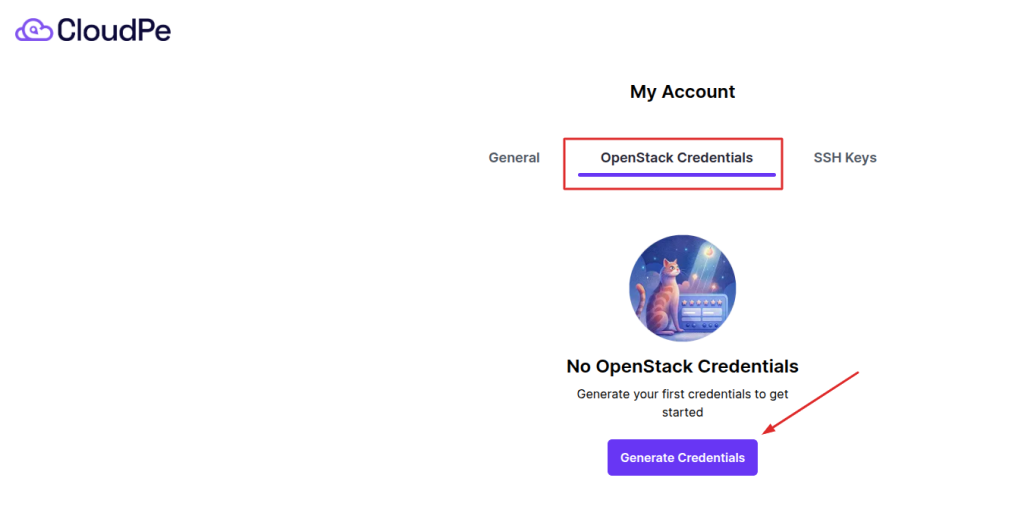
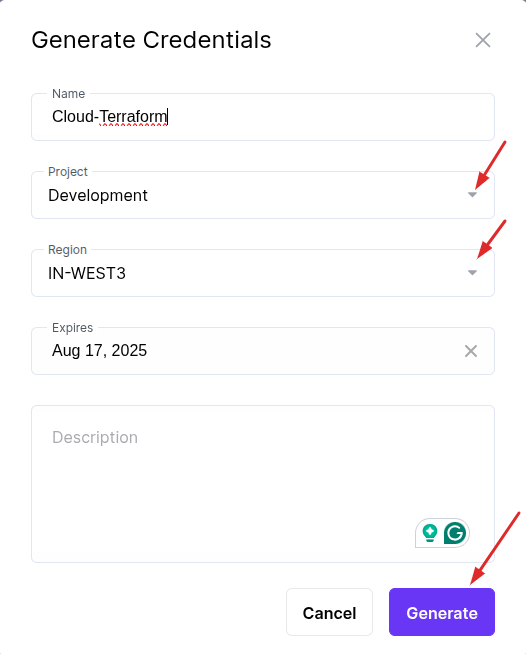
Step 3: Fill in the required details: Name, Project, Region, Expiry, and Description.
Use the dropdown menus to select the appropriate Project and Region.
Then, click Generate to create the credentials.
About Expiry: Once credentials reach their expiry date, they become invalid. Any API calls, Terraform runs, or CLI commands using expired credentials will fail with an authentication error. Make sure to regenerate credentials before they expire to avoid service interruption.
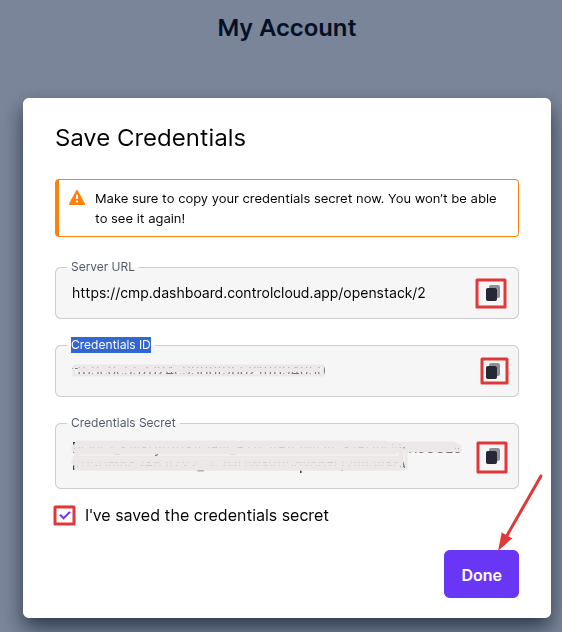
Step 4: Once the credentials are generated, the following details will be displayed:
- Server URL
- Credentials ID
- Credential Secret
⚠️ Important: Copy your Credential Secret immediately. It will not be shown again after you click Done.
🔒 Security Notice: Never share your Credential Secret with anyone. Do not paste it into chat, email, or tickets. Never commit it to version control (e.g., Git). Store it in a secrets manager or a secure vault.
Step 5: View Your Credentials on the Dashboard
After generation, your credentials will appear in the OpenStack Credentials section of your dashboard. You will be able to see:
- Credential Name
- Credential ID
- Project and Region
- Expiry date
Note: Only the Credential ID is visible on the dashboard after creation. The Credential Secret is never displayed again. If you did not copy it, you must delete the credential and generate a new one.
To generate additional credentials, click “Generate Credentials” again.
How to Delete / Revoke Credentials
You should delete credentials when they are no longer needed, have been accidentally exposed, or are suspected to be compromised.
Step 1: Navigate to OpenStack Credentials.

Step 2: Locate the credential you want to remove from the list.
Step 3: Click the Delete icon next to that credential.

Step 4: Confirm the deletion when prompted.
